You are at : Sonifex Ltd > Product Catalogue > SCi Software Control Interface
Cards Accepted
 
SCi
SCi Software Control Interface
  • Used to remotely configure and control devices via RS-232 or TCP/IP.
  • Multiple devices can be connected simultaneously.
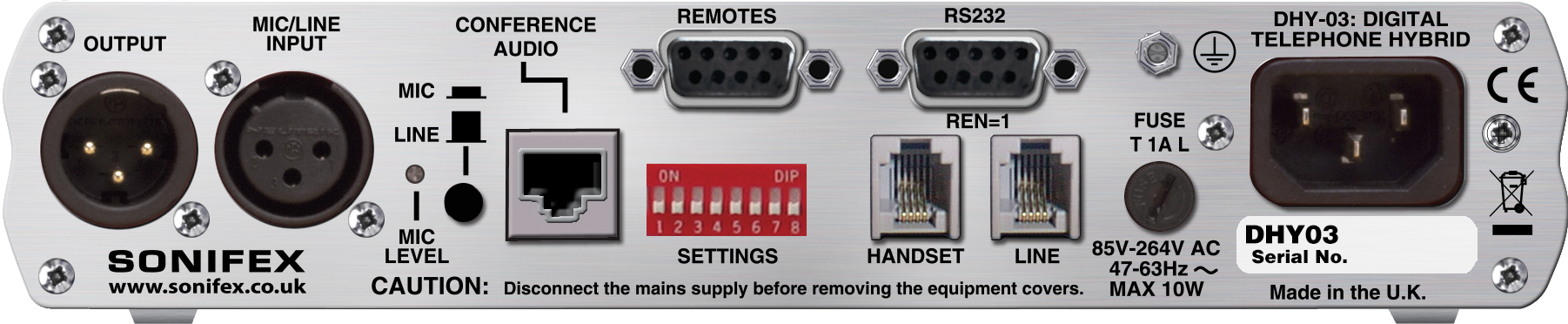
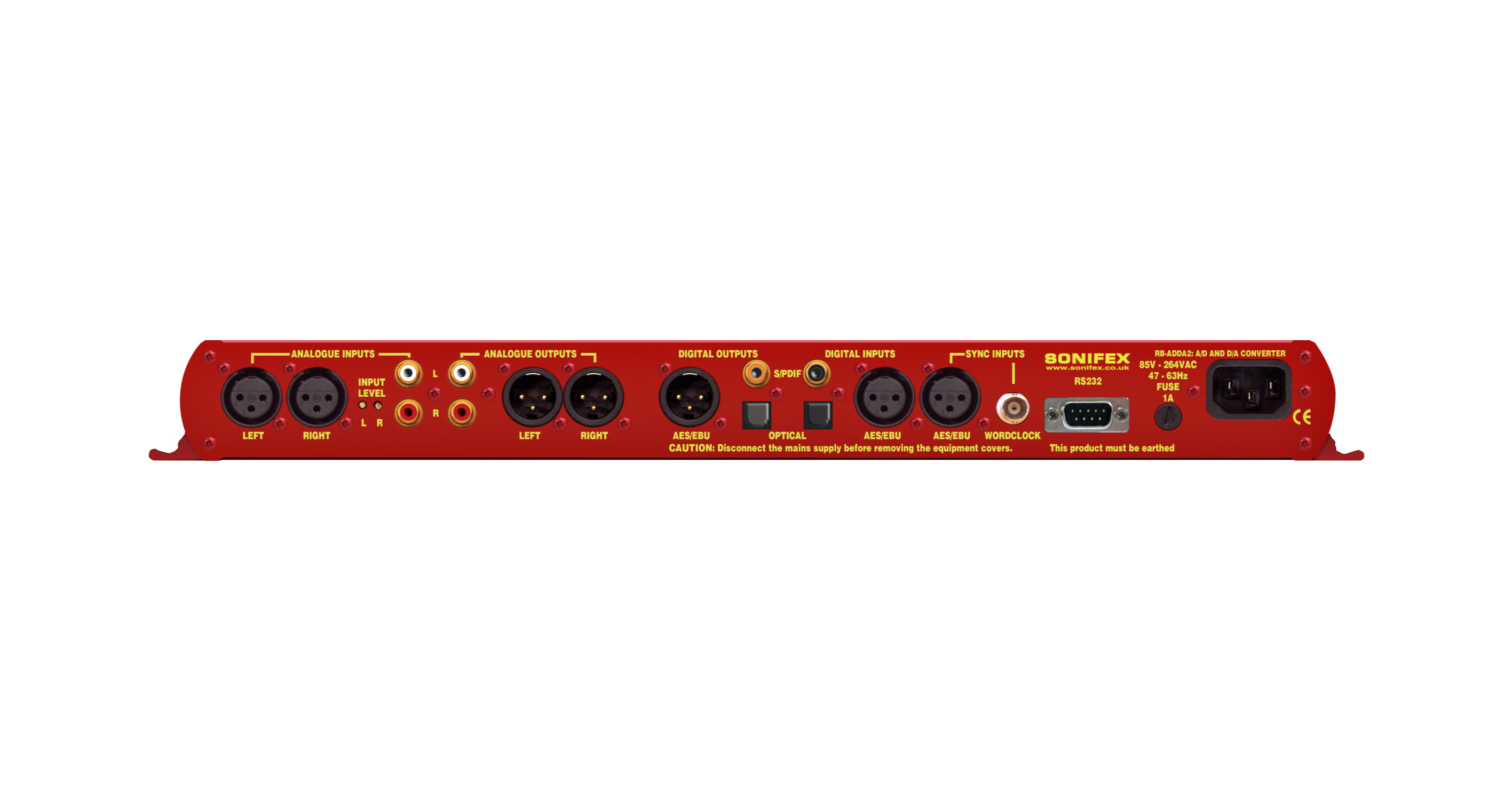
  • Includes drivers to control DHY-03, DHY-03EC, RB-ADDA2 and RB-DS2 units.
SCi Related Links:
> Latest Software Versions and Downloads

Launcher
Fig 1. SCi Launcher
Launcher
  • The Launcher is used to display a list of available devices.
  • Each device can be selected, and a device window displayed.
  • Access the Device List window to define new, edit or delete device connection details.
Defining Devices
  • Devices are defined through the Device List, as described below
Device Control
    Instructions:
  1. Use the UP and DOWN buttons to scroll the displayed devices, if needed.
  2. Select the required device to open.
  3. Use the selected device's window to remotely control the device (e.g. DHY-03 below).

Device List
Fig 2. SCi Device List
Device List
  • The Device List window is used to define the list of available devices.
  • Devices can be added, edited and removed from the list.
    Instructions
  1. Press the '+' button on the Launcher window.
  2. Use the 'Discover Devices' function or manually define devices using 'Edit->New Device'.
  3. Give meaningful descriptions to each device by selecting 'Edit->Edit Device' from the menu.
  4. Select 'File->Save' from the menu.
  5. Close the Device List window to re-display the Launcher.

The DHY-03
DHY-03 Digital Telephone Hybrid
  • SCi's DHY-03 driver can be used to configure DHY-03 units.
  • It can also be used to dial outgoing calls using DTMF.
  • Connection via DHY-03 unit's RS-232 port.
Related Links:
> DHY-03 Digital Telephone Hybrid
> Country Code List INI File

DHY-03 Device Information
Fig 3. DHY-03 Device Information
DHY-03 Device Information
  • The Device Information display shows product type, serial number, basecode and firware versions.
  • Displays RS-232 connection details.
  • This information is shown during initialisation of connection to DHY-03 unit.
  • Also displays progress of firmware upload.
  • Indicates unit's current status.
    Instructions:
  1. Select 'View->Device Information' from the menu.

DHY-03 Dial Pad
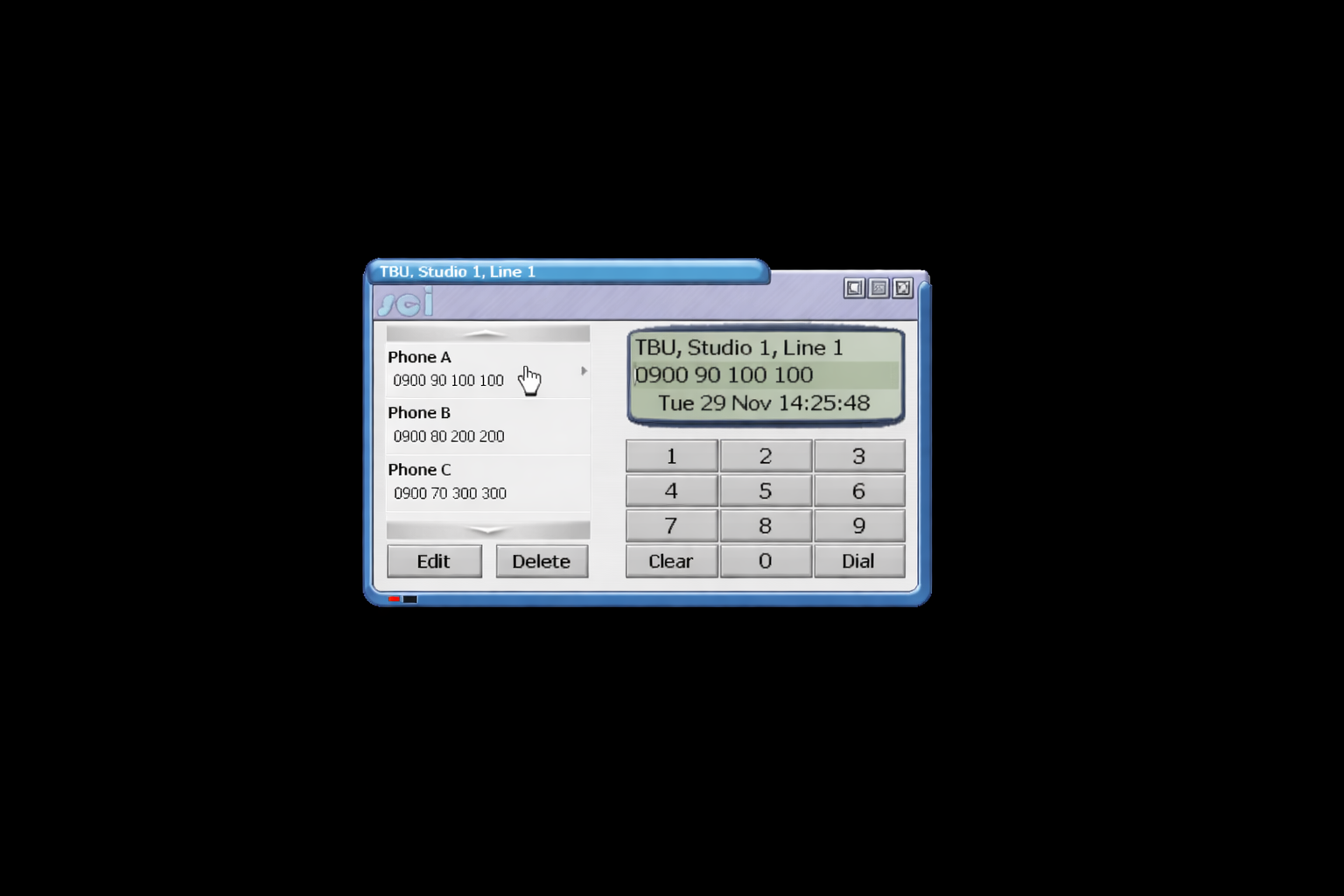
Fig 4. DHY-03 Dial Pad and Phone Book
DHY-03 Dial Pad and Phone Book
    The dial pad and display appear on the right of the screen:
  • Used to dial outgoing calls.
  • Used to answer incoming calls.
  • Used to drop connected calls.
  • The clock displays current time/date.
  • A timer displays duration of incoming/outgoing connected calls.
    The phone book appears on the left of the screen:
  • Create, edit and delete phone book entries.
  • Use the phone book entries to quickly dial outgoing calls.
 
DHY-03 Dial Phone Book
Fig 5. Selecting a Phone Book Entry
DHY-03 Manual Dial
    Instructions:
  1. Use dial pad buttons 0-9 to enter required number.
  2. Use DIAL button to begin dialling, or CLEAR button to cancel.
DHY-03 Dial Phone Book
    Instructions:
  1. Select the required phone book entry to dial.
  2. The selected number appears in the dial display.
  3. Use DIAL button to begin dialling, or CLEAR button to cancel.
  4. The phone book entry remains selected for 10 seconds.
 
DHY-03 New Phone Book
Fig 6. Adding a Phone Book Entry
DHY-03 Adding a Phone Book Entry
    Instructions:
  1. Press the NEW button to begin editing.
  2. Input a descriptive name in the top box.
  3. Input the dial number in the lower box.
  4. Use the OK button to save the entry, or CANCEL.
 
DHY-03 Edit Phone Book
Fig 7. Editing a Phone Book Entry
DHY-03 Edit Phone Book Entry
    Instructions:
  1. Select the phone book entry to edit.
  2. Press the EDIT button to begin editing.
  3. Edit the name and/or number details.
  4. Use the OK button to save the changes, or CANCEL.
DHY-03 Delete Phone Book Entry
    Instructions:
  1. Select the phone book entry to delete.
  2. Press the DELETE button.
  3. Confirm deletion.
 
DHY-03 Re-dial
Fig 8. Redialling Last Number
DHY-03 Redialling Last Number
    Instructions:
  1. Press the RECALL button to recall the last number.
  2. The last dialled number is displayed.
  3. Press the DIAL button to begin dialling.

DHY-03 Mode Menu
Fig 9. Select Settings Mode
DHY-03 Settings Mode
  • The settings mode used to alter DHY-03 settings.
  • Also used to upload new firmware to the unit.
  • The settings mode cannot be used while a call is connected.
    Instructions:
  1. Select 'Mode->Settings' from the menu.
  2. Wait for Standard Settings screen to be displayed.
Please note that the function and meaning of these settings is described in the DHY-03 handbook.

DHY-03 Standard Settings
Fig 10. DHY-03 Standard Settings
DHY-03 Standard Settings
    Instructions:
  1. While in Settings Mode, select 'Edit->Standard Settings' from the menu.
  2. Alter the settings as required.
  3. Select 'Upload Changes' from the menu.

DHY-03 Jumper Function
Fig 11. DHY-03 JP2 Jumper Function
DHY-03 Jumper Function
  • The function of the internal JP2 jumper can be configured for different uses.
    Instructions:
  1. While in Settings Mode, select 'Edit->Jumper Function' from the menu.
  2. Alter the settings as required.
  3. Select 'Upload Changes' from the menu.

DHY-03 TI Settings
Fig 12. DHY-03 Telephone Interface Settings
DHY-03 TI Settings
  • The telephone interface settings include input/output gain and line disconnect types.
    Instructions:
  1. While in Settings Mode, select 'Edit->Current TI Settings->Show TI Settings' from the menu.
  2. Alter the settings as required.
  3. Select 'Upload Changes' from the menu.

DHY-03 TI Registers
Fig 13. DHY-03 TI Registers
DHY-03 TI Registers
  • Advanced users can directly manipulate the hybrid's telephone interface registers.
  • Settings can be found in the DHY-03 handbook.
    Instructions:
  1. While in Settings Mode, select 'Edit->Current TI Settings->Show TI Settings' from the menu.
  2. Click on 'Advanced: Telephone Interface Registers'
  3. Alter the settings as required.
  4. Select 'Upload Changes' from the menu.

DHY-03 DT Settings
Fig 14. DHY-03 Disconnect Tones
DHY-03 Disconnect Tone Settings
  • Six sets of user-defined disconnect tone settings can be saved.
    Instructions:
  1. While in Settings Mode, select 'Edit->User DT Settings' from the menu.
  2. Continue to select the required set name.
  3. Alter the DT settings as required.
  4. Select 'Upload Changes' from the menu.

DHY-03 User Names
Fig 15. DHY-03 User-Set Names
DHY-03 User Names
  • Six sets of user-defined Disconnect Tone settings can be saved.
  • Each of these six sets can be given a unique name.
    Instructions:
  1. While in Settings Mode, select 'Edit->User Set Names' from the menu.
  2. Alter the names as required.
  3. Select 'Upload Changes' from the menu.

DHY-03 Upload Firmware
Fig 16. DHY-03 Uploading Firmware
DHY-03 Upload Firmware
  • New firmware can be uploaded to the DHY-03 unit as-and-when this becomes available.
    Instructions:
  1. While in Settings Mode, select 'Mode->Settings->Advanced->Upload Firmware' from the menu.
  2. Select firmware .DWN file.
  3. Wait for the upload to complete, and for the unit to reset before continuing use.

Sonifex Ltd. 61 Station Road, Irthlingborough, Northants, NN9 5QE, UK.
Tel: +44 (0)1933 650700 Fax: +44 (0)1933 650726 EMail: sales@sonifex.co.uk